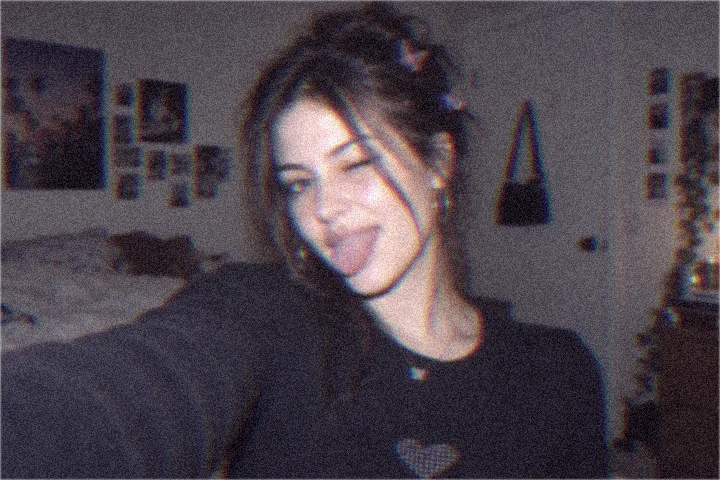
Make an early-2000s photo with direct flash, cool digital-camera color, soft focus, visible grain or a decorative 2004 date stamp. Start with a preset, then adjust the look in your browser.
2004 Digicam — Sample photo
Sample photo · Generated
✧Opening your photo…
Original2004 Digicam
Choose a photo to start editing.
Adjustments and download
Fine tune this look
History & saved presets
This tab can keep your photo across effects for up to 24 hours on this device. Clear local photo deletes the stored copy.
More adjustments +
Sample photo
WebP · no watermark · up to 1080px wide
Download limits & formats
JPG uses a white background for transparent pixels.
Start bright, then lower Flash bloom if facial detail disappears.
Grain
40
Color shift
36
Soft focus
18
Low saturation
82
Flash bloom
62
Orange date stamp
Off
Daylight compact
Outdoor portraits and travel photos
2004 Digicam
Soft CCD color and a little sensor grain.
Use the cooler compact-camera color and check fine detail before adding more grain.
Grain
54
Color shift
42
Soft focus
28
Low saturation
74
Flash bloom
26
Orange date stamp
On
Bedroom webcam
Soft, visibly noisy low-resolution style
Early Webcam
Low-resolution color with visible noise.
Keep the softer detail intentional; compare eyes and text with the original.
Grain
80
Color shift
62
Soft focus
64
Low saturation
62
Flash bloom
8
Orange date stamp
Off
Profile-era snapshot
Muted indoor portraits with a gentle glow
MySpace Snapshot
Muted bedroom light and a gentle glow.
Use the quieter flash as a base, then tune grain and soft focus for the photo.
Grain
36
Color shift
28
Soft focus
44
Low saturation
72
Flash bloom
38
Orange date stamp
Off
2000s settings for different scenes
Compare low light, daylight and landscape examples. Each edited image uses the settings listed below. Open a scene in the editor to try the same starting point.
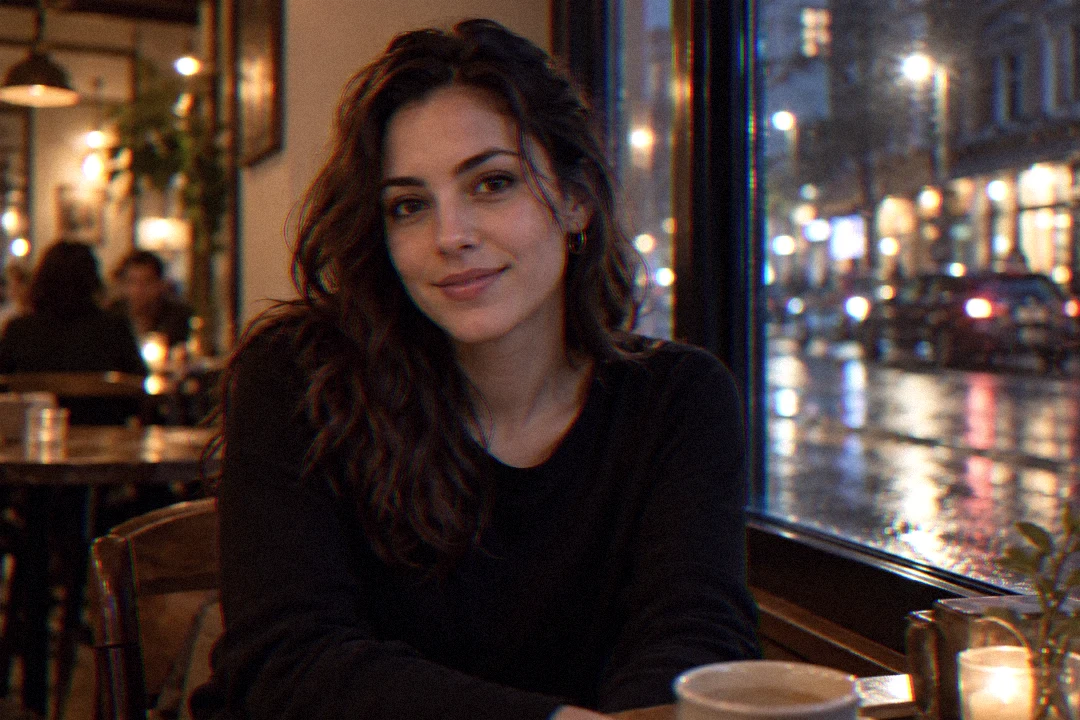
Low-light portrait
Warm indoor light and a darker street background. Compare the face and the window highlights before adding more bloom.
Original
Y2K Flash · adjusted
Y2K Flash with reduced bloom and grain to keep facial detail visible.
The look comes from several camera-era cues working together. This editor keeps them separate so a photo can feel period-specific without forcing every trait to its maximum.
Direct flashFlash bloom lifts bright areas like a close built-in flash.
Cool CCD colorColor shift moves the palette toward cyan and magenta.
Soft detailSoft focus reduces fine detail while keeping the subject recognizable.
Visible textureGrain adds fine digital sensor noise; low saturation can quiet the color.
Camera-date cueThe orange 2004 date stamp is decorative and does not read photo metadata.
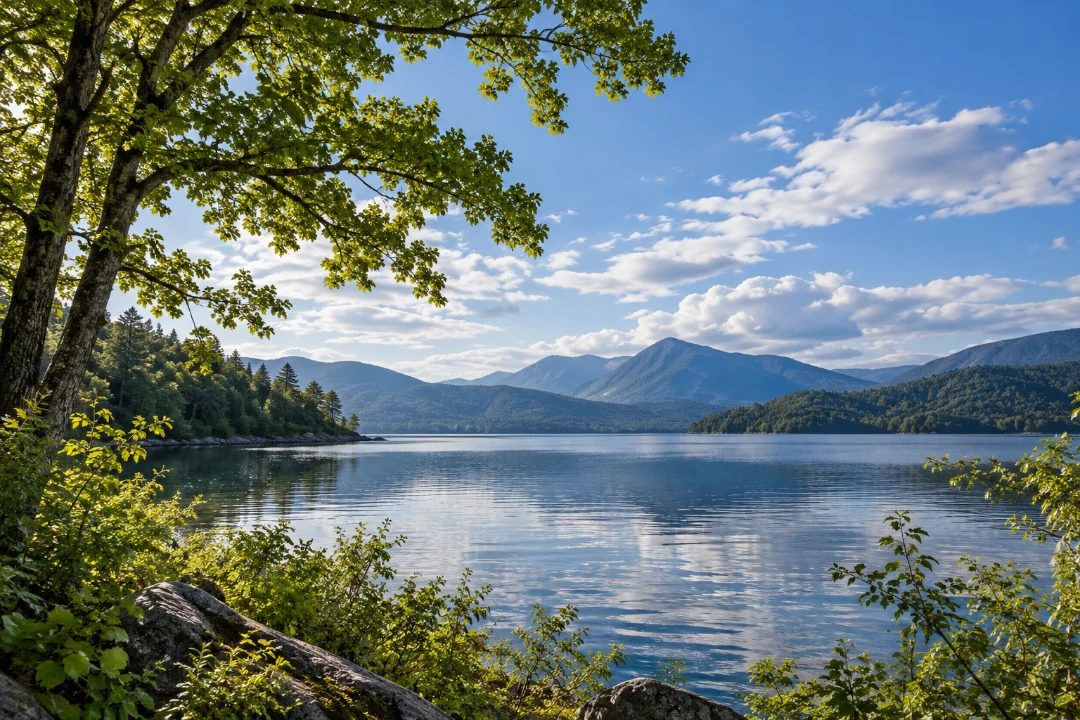
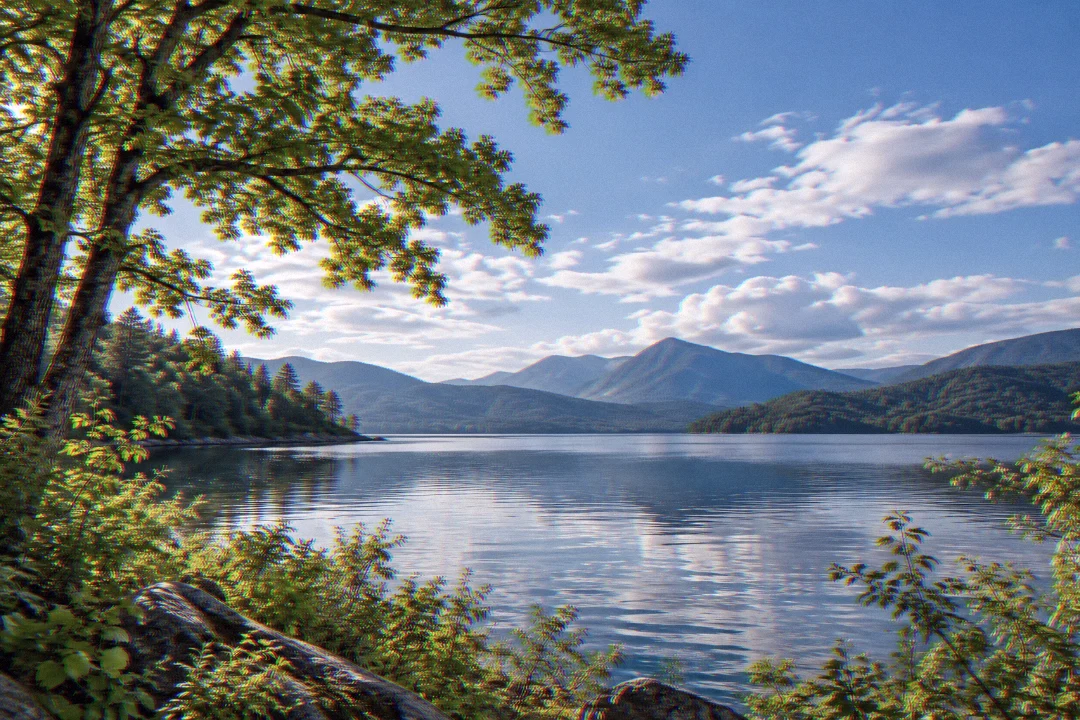
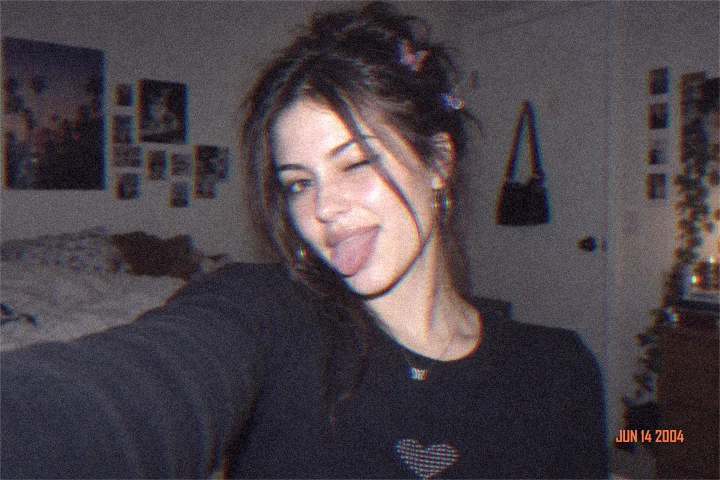
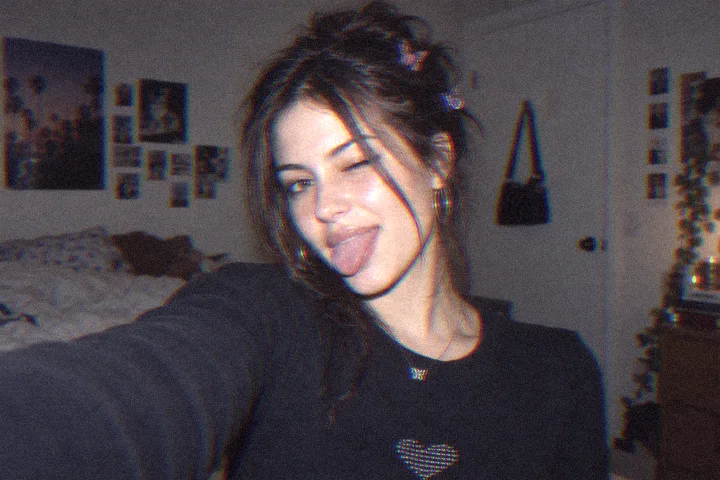
Before and after: early-2000s filter examples
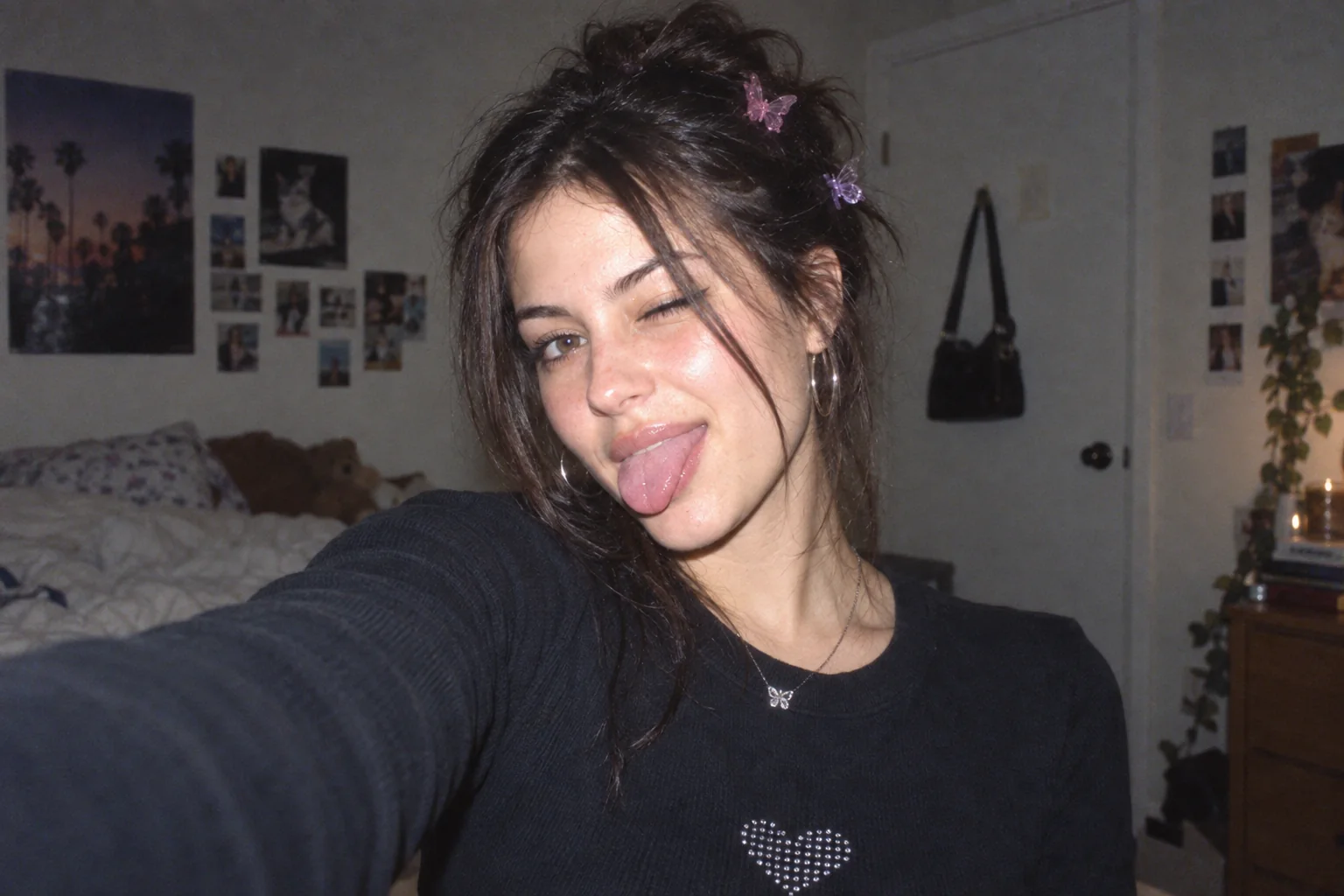
The same generated demo portrait was processed with the labeled preset in this browser editor. These are tool examples, not customer photos.
Original
2004 Digicam
2000s Photo Editor · Soft CCD color and a little sensor grain.Reproduce this preset
Check the parts of the photo most likely to lose useful detail before downloading.
Protect faces and pale fabric.Lower Flash bloom when bright areas look washed out.
Inspect fine edges.Reduce Grain or Soft focus if eyes, hair, foliage or small text become unclear.
Check smooth skies and water.Compare the original before increasing Grain or Color shift.
Treat the date as decoration.Turn the orange date stamp off when it distracts from the subject.
Compare before exporting.Use Original, Edited and Compare to judge the whole image, not one control value.
How to use the 2000s photo editor
01
Add a photo
Choose a JPG, PNG or WebP up to 5 MB, drop it into the editor, or paste it from your clipboard.
02
Choose a 2000s recipe
Start with party flash, a 2004 digicam, an early webcam or a MySpace-style snapshot, then tune the visible controls.
03
Compare and download
Check the original against the edit, then export a no-watermark image up to 1080px wide within the daily free allowance.
Free 2000s photo editor exports and limits
Every current effect and preset is free to use. Downloads have no watermark. Photos export up to 1080px wide; desktop designs export at 1920 × 1080. All tools share a limit of 5 exports per UTC day. Pro is not available yet.
Capability
Free
Pro (coming soon)
Photo effects & presets
All available presets
No paid preset is live
Image exports
Photos up to 1080px wide; desktop designs 1920 × 1080
Original-size export · Coming soon
Daily export allowance
5 exports · resets at midnight UTC
Not available yet
Batch processing
One image at a time
Coming soon
Video filters
Photo editing
Coming soon
Saved presets
Built-in and locally saved presets
Shared presets · Coming soon
Commercial use
Personal use
Commercial license · Coming soon
No account or payment is needed for free editing. Paid features and the waitlist are not open yet.
Pro is a plan, with no active signup or checkout.
Embed this 2000s photo editor
Share the browser editor on a compatible site. Photos are still processed on the visitor’s device.
FAQ
Should I use the 2000s filter or the digital camera filter?
Choose the 2000s filter for a quick flash, webcam or MySpace-style snapshot. Choose the Digital Camera Filter for its larger catalog of camera-era presets and separate warmth, highlights, shadows and bloom controls. Both process your photo in the browser.
How do I get cool CCD color without an overexposed flash?
Start with 2004 Digicam, adjust Color shift, then open More adjustments and lower Flash bloom. Color shift and flash are separate controls, so you can keep the cool snapshot palette while restraining bright areas.
Which 2000s preset gives an early-webcam look?
Choose Early Webcam for visible noise, softer detail and a low-resolution-style color treatment. Fine-tune Grain and Soft focus to suit the photo. It simulates the look within your image rather than capturing a webcam frame.
Does the orange 2004 date stamp read my photo metadata?
No. Orange date stamp is a decorative camera-era overlay, not a capture date read from your file. Toggle it under More adjustments and check the preview before downloading your 2000s edit.
What is the difference between a 2000s filter and a Y2K filter?
A 2000s filter usually imitates snapshots from that decade, with direct flash, cool digital-camera color and grain. Y2K is a broader early-internet aesthetic that can include those camera traits.
How do I add a date stamp?
Open More adjustments and turn on Orange date stamp. You can preview it before exporting.
How do I get a MySpace-style photo?
Start with the MySpace Snapshot preset, then adjust soft focus, grain and flash bloom to suit your photo.
Is the 2000s Photo Filter free, with no watermark?
Yes. All current presets and controls are free, and downloads have no watermark. Choose a JPG, PNG or WebP up to 5 MB; no app or account is needed.
Are my photos uploaded to a server?
No. Your photo is decoded, edited and exported on your device; the image is not uploaded to an image-processing server.
What are the free export limits?
Photo exports are up to 1080 pixels wide. Original designs export at 1080 × 1080, 1080 × 1920 or 1920 × 1080. All tools, including sample downloads, share five exports per UTC day with no watermark.
Can I use the edited photo commercially?
Current free exports are for personal use. A commercial license is planned and is not available yet.
 Original
 Y2K Flash · adjusted